How to Improve FPS in Valorant: 2026–2027
Improve Valorant FPS with repeatable tests, graphics comparisons, driver checks and troubleshooting for CPU limits, heat, stutters and input latency.
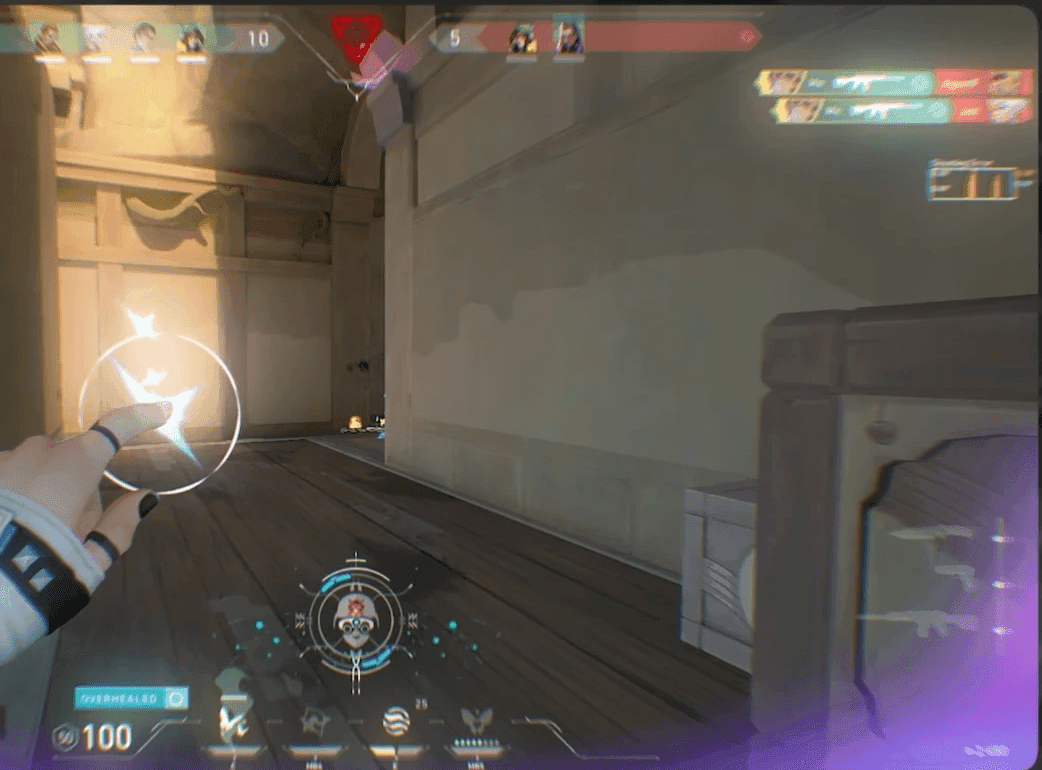
To improve FPS in Valorant, first identify what slows your PC down, then change one setting and repeat the same test. Start with the game’s performance statistics, reduce unnecessary graphics work, check background apps and drivers, and keep the changes that improve your results.
There is no universal setting that adds a fixed number of frames. A laptop running on battery, a PC limited by its CPU and a system with a busy GPU need different solutions. The aim is a consistent match, including during fights.
Check whether the problem is FPS, latency or the network
FPS measures how many frames your game produces each second. Frame time measures how long a frame takes: 60 FPS corresponds to about 16.7 milliseconds per frame; 144 FPS corresponds to about 6.9 milliseconds. A high average can still hide noticeable pauses.
Network ping measures the round trip to the server. Packet loss and low server FPS are separate problems. Lower graphics settings cannot repair the server or your internet route. Riot explains these distinctions in its game and network instability guide.
Open Settings → Video → Stats and enable the client FPS display and available performance graphs. Check network statistics too when the symptom is delayed or corrected movement. Use the warning you actually see to choose your next step.
Make a baseline you can repeat
Before changing anything, write down your resolution, display mode, graphics preset, FPS limit and driver version. Take a screenshot of the settings.
Use a short custom-game route or Range routine:
- Let the game settle, then repeat the same movement and shooting sequence for two minutes.
- Repeat it three times with the same resolution, background apps and power connection.
- Record the typical FPS range, obvious drops and when they happen.
- Change one setting and repeat those three runs.
- Keep an improvement only if it appears repeatedly without making targets harder to see.
This is a practical comparison method, not a laboratory benchmark. A quiet Range session will not reproduce every ranked fight. After selecting settings, check a normal match as well. If you record video to compare runs, keep recording enabled in both runs because it adds another workload.
Choose graphics settings according to the bottleneck
Start with these reversible comparisons. Save your original values so you can restore them.
| Setting | First comparison | What to watch |
|---|---|---|
| Material, Texture, Detail and UI Quality | Compare Low with your current values | FPS drops and whether important details remain readable |
| Bloom, Distortion and Cast Shadows | Compare disabled with enabled | Visual effects and consistency during fights |
| Resolution | Test one lower supported resolution | FPS improvement versus loss of target clarity |
| Multithreaded Rendering | Compare enabled if your hardware meets Riot’s guidance | CPU performance and stutters |
| Display mode | Compare Fullscreen with your usual mode | Responsiveness, stability and switching between apps |
| V-Sync | Compare disabled if you accept screen tearing | Tearing, frame limits and responsiveness |
Riot identifies the quality and effects options above as useful low client FPS troubleshooting settings. Treat Low as a diagnostic starting point; you can restore visual quality that your PC handles comfortably.
When lowering resolution helps—and when it does not
Lower resolution reduces rendering work, but a different bottleneck can prevent an FPS improvement. Riot has explained that CPU limits can make graphics changes ineffective; its performance discussion is historical guidance, not a benchmark for today’s hardware.
If a lower resolution repeatedly improves FPS, graphics workload deserves attention. If FPS barely moves, check CPU-related performance graphs, background activity and power conditions. These observations suggest a direction; they do not prove that you need a new component.
Check Multithreaded Rendering requirements
Riot’s Multithreaded Rendering guidance specifies 8 GB RAM, 2 GB VRAM and at least eight physical or virtual CPU cores. That is separate from the minimum specification for launching Valorant. Test the setting when it is available and your machine qualifies; do not assume every multicore PC benefits equally.
Check Windows, drivers and background load
Close apps you do not need for the test: extra browser windows, streaming software, downloads or optional recording overlays. Save work first and close the app normally. Do not end unfamiliar system processes or disable Vanguard.
Riot’s frame-rate troubleshooting guidance recommends checking drivers, Windows updates and competing background processes. Download compatible graphics drivers from your hardware vendor: NVIDIA, AMD or Intel. Intel recommends checking the computer manufacturer for OEM devices such as laptops.
For a laptop, compare while connected to its intended power adapter. In Windows 11, power mode is under Settings → System → Power & battery. Microsoft describes the tradeoff between efficiency and performance in its power-mode instructions. Test a performance-oriented mode while monitoring heat and noise; it is not a guaranteed FPS increase.
Avoid changing five driver, Windows and game options together. If performance regresses after an update, record the version and timing before seeking vendor or Riot support.
Investigate FPS that falls as the PC warms up
If the first few minutes run smoothly and later runs deteriorate, compare the same workload after the machine warms up. Check temperatures and clocks using the manufacturer’s monitoring tools.
Keep laptop vents unobstructed and follow the manufacturer’s cooling and maintenance guidance. Temperature alone does not diagnose a fault: operating limits differ by processor. AMD explains how temperature, power and cooling affect processor performance. Look for a repeatable change in performance alongside those readings rather than applying someone else’s temperature threshold.
Separate responsiveness settings from FPS gains
On supported NVIDIA hardware, try Valorant’s NVIDIA Reflex setting for lower system latency. Reflex concerns the rendering pipeline; it is not a promise of higher FPS. NVIDIA describes its purpose in the Reflex documentation.
NVIDIA recommends in-game Reflex over duplicating its driver low-latency setting. Its latency guide also explains the V-Sync tradeoff: disabling it can reduce latency but allows tearing; variable-refresh displays need a suitable configuration. If considering Reflex Boost, note that NVIDIA documents higher power use in exchange for a possible latency benefit.
Do not automatically disable Windows fullscreen optimizations. Microsoft documents windowed-game optimizations for compatible DirectX 10 and 11 games. Compare display modes on your machine instead of assuming one Windows checkbox always helps.
Questions about Valorant FPS
Can a low-end PC run Valorant smoothly?
Compare your hardware with Riot’s current PC specification tiers, labelled 30, 60 and 144 FPS. Those tiers guide compatibility; they do not guarantee every fight runs at that rate. Windows 11 also requires TPM 2.0 and UEFI Secure Boot. Keep those protections enabled.
Should I remove every FPS limit?
First check whether an intentional game or driver limit explains a steady ceiling. For testing, record the limit and compare deliberately. Unlimited FPS is not automatically the best everyday choice, especially if sustained load creates heat or inconsistent performance.
Will a gaming VPN or practice tool raise FPS?
Network routing and local rendering are different jobs. Diagnose the FPS counter before buying a network service. Roadmap’s free practice tools, including Movement Matcher and Strafe Master, support mechanics practice; they are not FPS optimizers.
Once performance is stable, use the aim-training and troubleshooting guide to choose a practice task. If you want feedback on fights and decisions, explore Roadmap’s Valorant coaching. Hardware settings alone do not promise a rank increase.
AI-assisted editorial guide. Technical sources checked on 12 October 2026. The 2026–2027 edition has not been tested against future 2027 updates. Roadmap has not performed an in-game benchmark or obtained a coach review for this article.