Valorant Sensitivity and Settings: A Practical Testing Guide
Understand Valorant eDPI, compare sensitivity fairly, test crosshair and video settings, and evaluate professional player settings without chasing stale numbers.
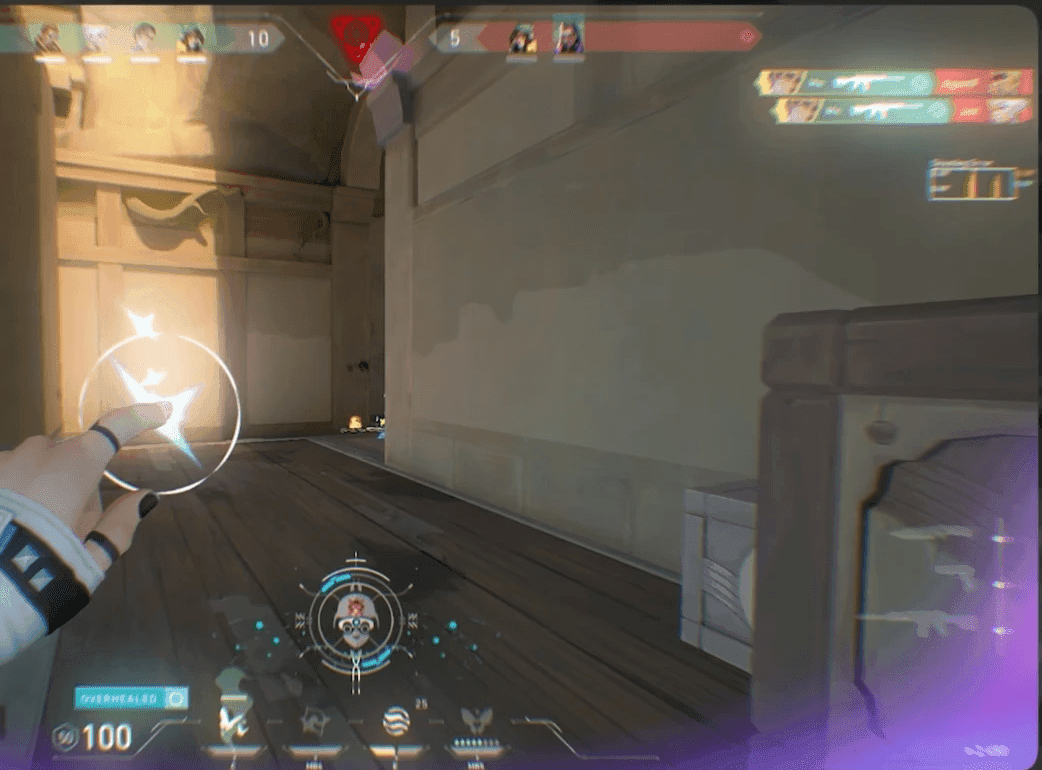
The best Valorant settings for you are settings you can use comfortably and repeat consistently. A professional player's configuration can be a starting point, but it is not a substitute for testing your own mouse control, visibility and performance.
What is eDPI in Valorant?
For comparing the base sensitivity of two mouse setups in Valorant, eDPI = mouse DPI × in-game sensitivity. For example, 800 DPI with 0.35 sensitivity gives 280 eDPI. At 1600 DPI, a sensitivity of 0.175 gives the same eDPI.
| Mouse DPI | In-game sensitivity | eDPI |
|---|---|---|
| 400 | 0.70 | 280 |
| 800 | 0.35 | 280 |
| 1600 | 0.175 | 280 |
These are calculation examples, not recommended settings or a professional player's configuration. Scoped and ADS sensitivity multipliers are separate settings; record those too when comparing setups.
How to test a sensitivity change
- Write down your current DPI, sensitivity, ADS and scoped multipliers.
- Use the same mouse, mousepad space and posture for each test.
- Check a short, repeatable set of movements: a small correction, a wider target switch, tracking a moving target and a comfortable turn.
- Notice whether you consistently overshoot, undershoot or run out of mousepad.
- Change one variable and repeat the same test.
- Use the candidate setup across several ordinary sessions before drawing a conclusion.
Keep a short note about comfort and control. One unusually good deathmatch or one bad ranked game is weak evidence. Before blaming sensitivity, review whether you were moving while firing or holding the wrong crosshair height.
Crosshair: prioritize visibility
Choose a crosshair you can locate against both bright and dark surfaces without covering the target. Test it on the maps and sightlines you actually play.
If you import someone else's crosshair, check it yourself at distance. Copying the code does not establish that it suits your display or helps you see movement errors. Pair the setup with crosshair placement practice.
Video settings: test consistency on your hardware
Record your resolution, display mode, refresh rate and graphics settings before changing them. Compare performance in a repeatable scene, then check an actual match where abilities and other players add load.
Stable performance and clear information matter more than matching a screenshot from a different computer. Avoid treating a specific graphics preset as a universal fix. Consult current game and hardware documentation before changing driver features.
How to judge a pro-player settings page
A useful settings profile should show:
- The player's identity and a link to their own channel or another attributable source.
- The date the settings were observed, separately from the date the article was edited.
- DPI, base sensitivity and calculated eDPI together.
- Whether a crosshair code and equipment information were directly confirmed.
- Which values are missing or historical.
A recent article date does not prove the player still uses the listed setup. Do not mix a sensitivity from an old clip with a DPI from a new stream and present the combination as current.
Our Maru profile and Zelo profile link to their public channels. We do not publish “latest settings” numbers without a dated, attributable source.
Settings versus coaching
Settings influence how you interact with the game. They do not tell you when to rotate, whether a duel is necessary or how to coordinate utility.
If your setup feels stable but you keep losing the same situations, review a recording with the VOD checklist. If you want help identifying the priority, read how Valorant coaching works or book an assessment.